Blog / How-to
How to add illustrations to a Lovable app, step by step
Lovable builds the app; it does not draw your pictures. Here is the quickest way to give a Lovable project illustrations that match each other and your brand, without design tools or code.
By Abdullah NomanOctober 23, 20263 min read
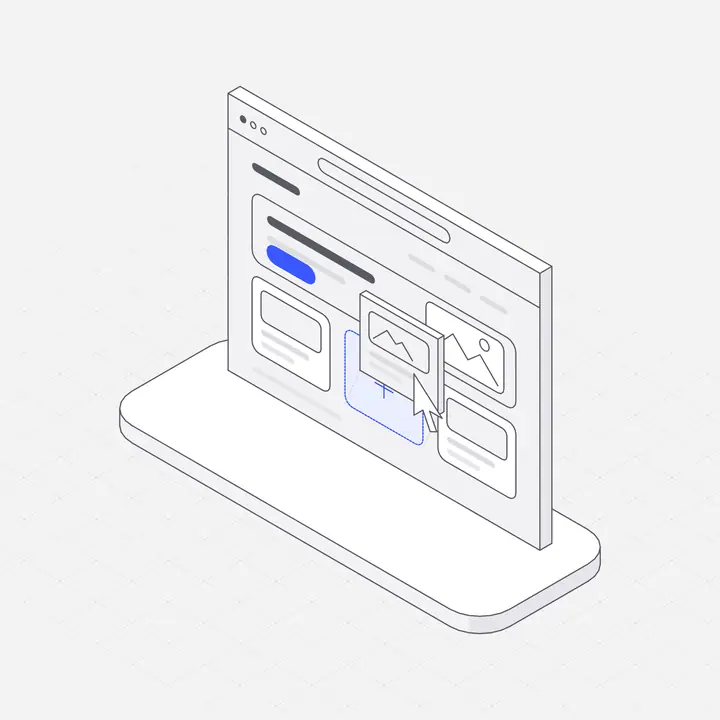
Short answer: choose your illustrations in a library, copy them as one prompt that contains the file links and where to save them, and paste that prompt into the Lovable chat with one line saying where they go. Lovable downloads the files into your project and adds them to the page. Below is the full process, plus the prompts we use.
Why Lovable apps need help with illustrations
AI app builders are very good at layout, components and copy. Pictures are the weak spot: left alone, a builder reaches for stock photos, emoji, gradient blobs or generic icons, and the result looks like every other AI-built app. A small set of illustrations in one consistent style is the fastest way to make the app feel designed.
Consistency matters more than any single picture. Five illustrations from five sources look like a collage. Five from one style, in your brand colour, look like a product.
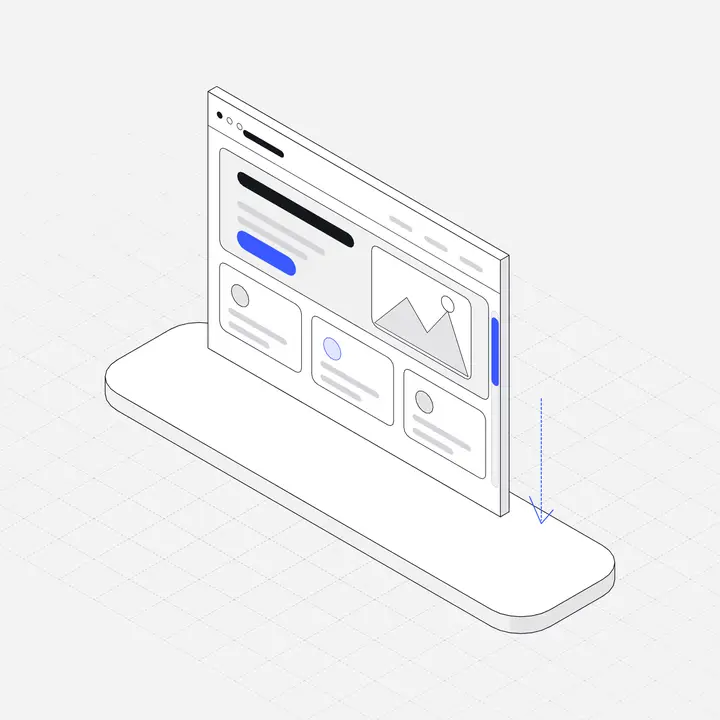
Step 1: pick the colour and the illustrations
- Open the Liniqo library and set your accent colour with the colour dot at the top. Choose light or dark to match your app.
- For a single illustration, open it and click Use with AI. The prompt is copied.
- For a whole page, tap the heart on each illustration to save it to a collection, then open the collection and click Copy for AI.
A good first set for a SaaS app is one hero illustration, three feature illustrations and two or three empty states.
Step 2: paste into the Lovable chat
Paste the copied text, then add one sentence about placement. The copied text already tells Lovable to download every file into public/illustrations/ and to use them as images, so you only need to say where:
Use these on the landing page: the first one in the hero on the right,
the next three at the top of each feature card. Same size within each section.
If the project already has images in those spots, say "replace the current images".
Step 3: check the preview and adjust in plain words
Look at desktop and mobile. Then adjust with short requests: "make the hero illustration larger on desktop and put it above the headline on mobile", "use the dark versions when the app is in dark mode", or "swap the pricing illustration for one about payments".
Prompts that work well in Lovable
| Goal | Add this after the copied prompt |
|---|---|
| Landing page | One large hero illustration on the right, one per feature card, same height within each row. |
| Empty states | Use these for every empty state (no data, no results, empty inbox), centred above the message, about 200px wide. |
| Onboarding | One per onboarding step, same size on every step, above the step title. |
| Dark mode | Switch every illustration to its dark version when the app is in dark mode. |
More are in the prompt library.
Add a moving illustration to the hero
For a hero that reacts to the visitor, switch the library to Interactive, open a figure and click Copy embed code. Paste it into Lovable with: "add this interactive figure to the right side of my hero. The project uses React, so render the div and load the script once." Interactive figures follow the mouse, and finger on phones.
Common problems and fixes
- Lovable links to the files instead of saving them. Ask: "save the SVG files into public/illustrations and use local paths, do not hot-link". Links that contain a licence key should never stay in your code.
- The illustrations are different sizes. Ask for a fixed width per section, for example "all feature illustrations 240px wide".
- Colours do not match. Set the accent colour in the library before copying; the files carry the colour you chose.
The full walkthrough, with short animations of each step, is on the Lovable guide.
Questions
Can I add illustrations to Lovable without coding?
Yes. Copy the illustrations as a prompt from the Liniqo library and paste it into the Lovable chat with one line about where they go. Lovable saves the files and places them.
Do I need a paid plan?
No for the 308 free illustrations. A licence unlocks all 2,648; Pro and Lifetime also include the interactive figures and animated files.
Will the illustrations match my brand?
Yes. Pick your accent colour and light or dark in the library before copying, and every file comes in those colours.
Does this also work in Bolt, v0 and Replit?
Yes, the same copy-and-paste flow works in any AI builder that can save files into the project. See the guides for each tool at liniqo.com/ai.