Blog / Framer
Interactive illustrations in Framer, with no code
A still illustration explains. An illustration that leans toward the cursor gets people to stop scrolling. In Framer you can have the second without writing or pasting code.
By Abdullah NomanOctober 31, 20263 min read
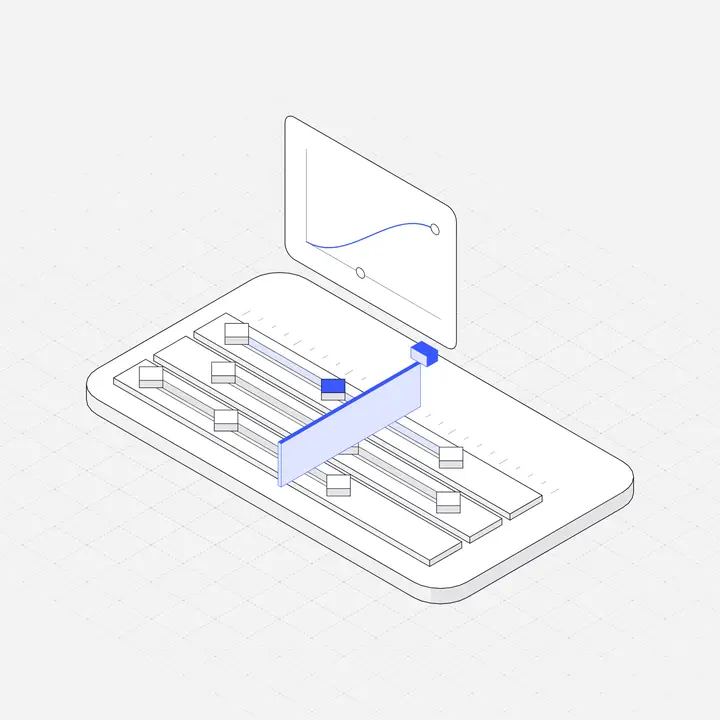
Short answer: in the Liniqo plugin on the Framer Marketplace, switch to the Interactive tab, search for a figure, and click it. The plugin adds a LiniqoLive code component to your project and places an instance on the canvas (400 by 320 to start). Its properties panel holds the figure, accent, theme and, for paid figures, a sealed token. Preview the page and hover it: the figure follows your pointer. 26 figures are free; Pro or Lifetime unlocks all 533.
What makes an illustration interactive?
Liniqo Live figures are drawn in the same hairline isometric style as the still library, but they are rendered live in the browser. Parts of each figure respond to the pointer (a server rack’s lights, a parcel lifting, a chart redrawing), and the scroll figures play an animation as the section passes through the screen, with nothing pinned. On phones, where there is no hover, the scroll figures still play as visitors scroll.
How do you add one to a Framer page?
- Open the Liniqo plugin and click the Interactive tab.
- Search ("payments", "AI agent", "logistics") or pick a category.
- Choose the accent and light or dark, then click the figure. The first time, the plugin creates the code component in your project; after that it reuses it.
- Give the instance the width you want. The figure scales to its container.
- Open the preview and move the pointer over it.
Can you change the figure after inserting it?
Yes. Select the instance and use the properties panel: switch to a different figure, change the accent or flip between light and dark. You can also copy the instance to other pages and give each its own settings.
Is it safe to publish a site with a paid figure?
Yes. Your license key is never written into the site. For paid figures the plugin stores a sealed embed token tied to your license, so the published page can render the figure without exposing the key.
Does it hurt performance or accessibility?
- Each figure is one small script and an SVG, and animation pauses when the figure is off screen.
- Visitors who set reduce motion see the figure still.
- The figure is decorative, so screen readers skip it; your headline and copy carry the meaning.
More detail in interactive graphics and performance and accessible interactive illustrations.
Where should you use an interactive figure?
Use one, maybe two, per page: the hero is the obvious place, and a single feature section further down is the other. Everywhere else, use still illustrations from the same library so the style stays consistent. For layout ideas see interactive hero sections.
| What you want in Framer | Plan | Price |
|---|---|---|
| Free illustrations and free interactive figures | Free, no key | $0 |
| All 2,648 illustrations as SVG layers | Personal | $29 once |
| All 533 interactive figures, client projects | Pro | $49 once |
| Everything, up to 5 people, every future drop | Lifetime | $99 once |
Questions
Can Framer show illustrations that follow the mouse?
Yes. The Liniqo plugin adds interactive figures to Framer as a code component; in preview and on the published site they react to the pointer, and scroll figures play as the page scrolls.
Do I need to write code to add interactive illustrations in Framer?
No. The plugin creates the code component and places it for you. You change the figure, accent and theme in the properties panel.
Which Liniqo plan includes interactive figures?
26 interactive figures are free. Pro and Lifetime unlock all 533; Personal covers the still illustrations only.
Will my license key be visible on the published site?
No. Paid figures use a sealed embed token, never the raw key.