Blog / Development
How to recolour SVG illustrations to match your brand
A stock illustration in someone else's blue looks borrowed. Recolouring it to your brand takes minutes if the SVG is built well. Here is how to do it in a design tool, in the file and in CSS, and how to choose colours that hold up.
By Abdullah NomanOctober 13, 20263 min read

Most illustration libraries ship in one default colour. Using it as it is makes your product look like everyone else who used the same library. Recolouring is the cheapest way to make illustrations feel like your own, and with SVG it does not require an illustrator.
Start with the colour plan, not the tool
Before changing anything, decide which parts change. The most robust plan for product illustrations is:
- One accent: your brand colour, used only on the most important part of each drawing.
- A line colour: usually a near-black or a very dark tint of your brand colour.
- Neutrals: three or four light greys for object surfaces.
Illustrations that splash the brand colour everywhere compete with your buttons. Keeping it to one part per drawing means the accent points at something, the same way it does in your UI.
Method 1: in Figma or Illustrator
Drop the SVG in and use Selection colors in Figma (or Recolor Artwork in Illustrator) to swap each colour across the whole drawing at once. This is quick for a few images and lets you see the result immediately. The downside: you now have edited copies to maintain, and if your brand colour changes you repeat the work for every file.
Method 2: edit the file
An SVG is text. Open it in a code editor and replace the hex values:
<!-- before -->
<path fill="#3a57ff" d="..." />
<!-- after -->
<path fill="#ff5a3c" d="..." />
Find and replace across a folder recolours a whole set in seconds. It works best when the library uses a small, consistent set of hex values. If every file uses slightly different shades, this gets messy fast.
Method 3: currentColor
For simple one-colour line illustrations, set strokes to currentColor. The SVG then takes the CSS color of whatever contains it, the same way an icon does:
<svg viewBox="0 0 400 400">
  <path stroke="currentColor" fill="none" d="..." />
</svg>

.empty-state svg { color: #ff5a3c; }
Great for icons and very simple drawings. For illustrations with lines, surfaces and an accent, one colour is not enough, so you need method 4.
Method 4: CSS variables
The most flexible approach. Each role in the drawing (line, surface, accent) reads a CSS variable with a fallback:
.s-ink    { stroke: var(--hl-ink, #15171c); }
.f-accent { fill:   var(--hl-accent, #3a57ff); }
.f-surface-1 { fill: var(--hl-surface-1, #e8e9ec); }
Set the variables once in your stylesheet and every inline illustration on the site follows. Change the brand colour in one place and all of them update. You can even scope colours per section:
:root          { --hl-accent: #3a57ff; }
.pricing       { --hl-accent: #12a594; }
.danger-zone   { --hl-accent: #e5484d; }
This needs the SVG to be inline or rendered as a component, because an <img> cannot read your page's CSS. We cover the ways to inline SVG in SVG illustrations in React and Next.js.
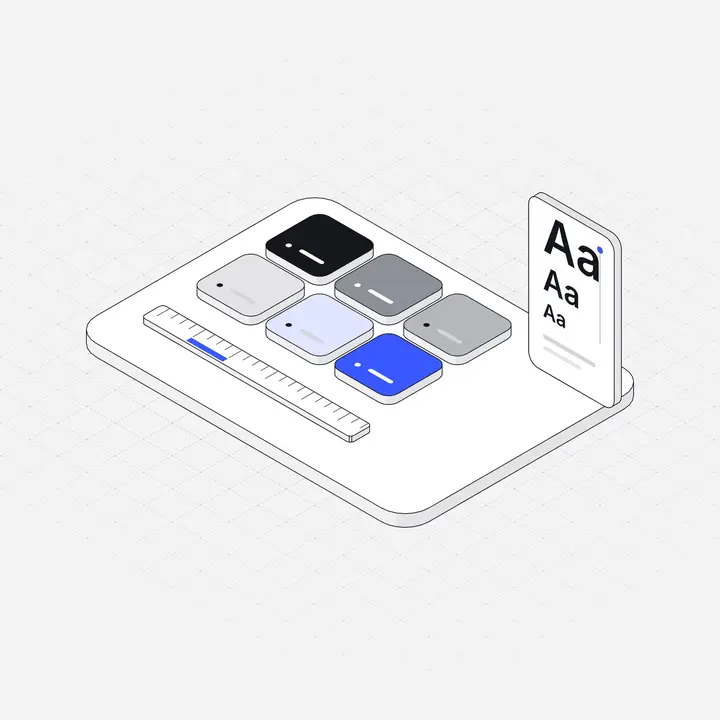
Choosing an accent that works
- Test it small. A colour that looks great in a 600px hero can turn muddy at 96px in an empty state.
- Check it on both themes. Many brand blues and purples need a lighter variant on dark backgrounds. See Dark mode illustrations.
- Avoid your error colour. A red accent next to an error message reads as part of the error.
- Tint the surfaces slightly. Mixing about 10 to 15% of the accent into the lightest surface makes the drawing feel on-brand without adding a second colour.
- Keep the line colour neutral unless your brand is built on a strong dark colour, in which case a very dark brand tint for lines looks deliberate.
Is recolouring allowed?
Usually yes, but check the licence. Most commercial illustration licences, including Liniqo's, allow recolouring, cropping and combining. What they do not allow is reselling the recoloured files as your own illustration pack. More in Illustration licences explained.
In the Liniqo library you can set an accent and a line colour once and every preview, download and AI hand-off uses them. The SVGs also ship with the CSS variables above, so you can change colours later in code.
Questions
How do I change the colour of an SVG?
Edit the fill and stroke values in the file, use a design tool, or render the SVG inline and drive its colours with currentColor or CSS variables.
Why does CSS not change my SVG colour?
If the SVG is loaded with an img tag or as a CSS background, your page CSS cannot reach inside it. Render it inline or as a component instead.
How many colours should a product illustration use?
One accent, one line colour and a few neutral surfaces is a robust plan. It keeps the accent meaningful and makes recolouring easy.